Quickstart
In this quickstart, you'll create an AI-powered phone line that can make and receive calls. By the end, you'll have a working phone number connected to your AI agent.
What you'll learn:
- Create your KrosAI account and API key
- Purchase a phone number
- Connect an AI endpoint (ElevenLabs, Vapi, or custom)
- Make your first inbound and outbound calls
Prerequisites
Before you begin, you'll need:
- A KrosAI account (sign up free)
- An AI voice provider account (ElevenLabs, Vapi, or Retell)
- A phone to test calls
1
Create your account
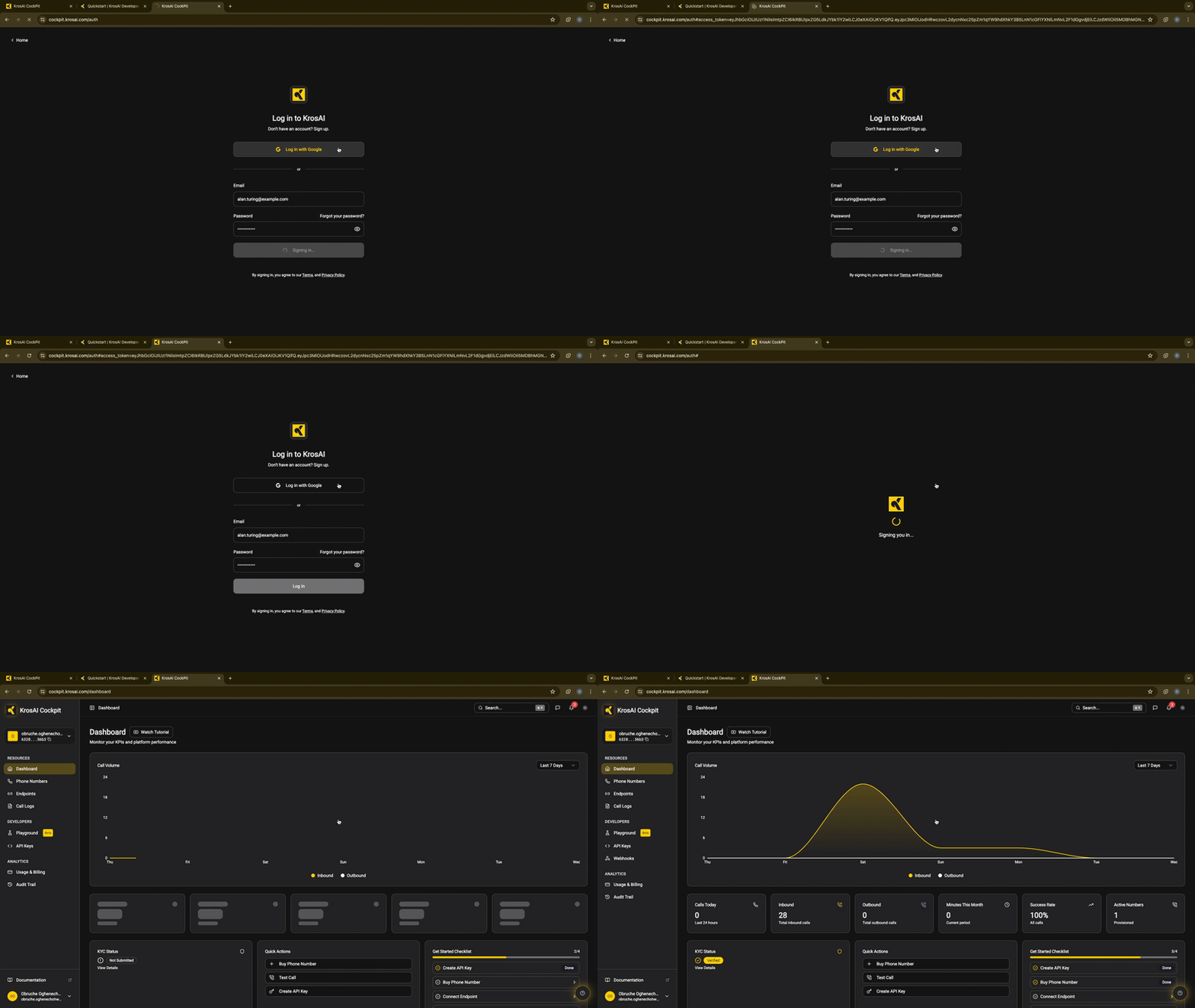
- Go to cockpit.krosai.com
- Sign up with email or Google
- Complete KYC verification (required for phone numbers) - takes ~2 minutes
KYC verification is required by telecom regulations before purchasing phone numbers. We use Sumsub for secure identity verification.
2
Create an API key
Using the Dashboard
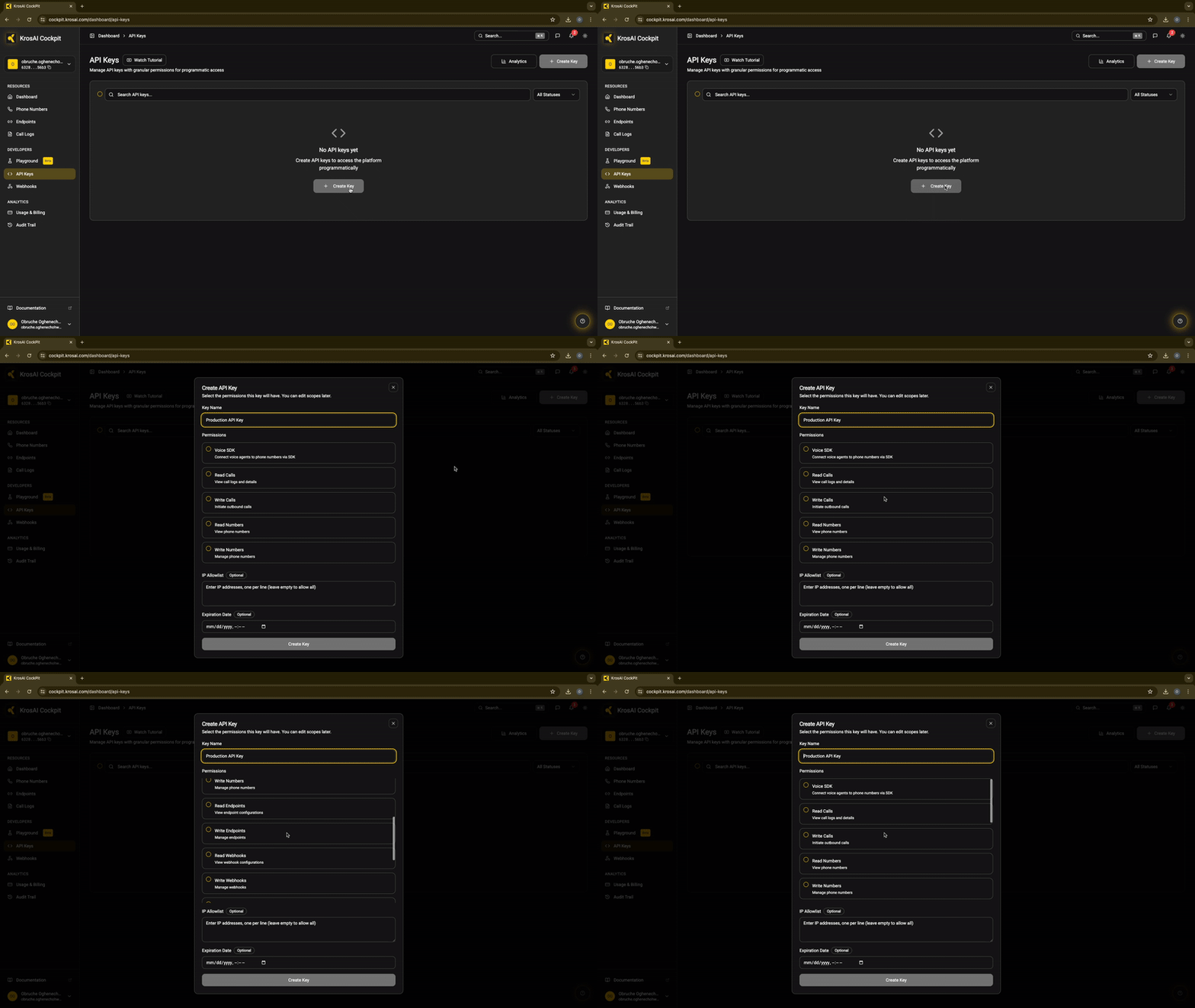
- Navigate to Developers → API Keys
- Click Create API Key
- Name it (e.g., "My First Key")
- Select scopes:
numbers:read- View phone numbersnumbers:write- Purchase/configure numberscalls:read- View call logscalls:write- Make outbound calls- Click Create
- Copy and save your key - it's only shown once!
Your API key will look like: kros_live_abc123...
3
Purchase a phone number

- Navigate to Phone Numbers → Buy Number
- Select your country (e.g., Nigeria, Kenya, UAE)
- Choose a number from the available inventory
- Click Purchase
4
Connect AI Agent Providers
Navigate to Integrations in the dashboard, select your AI provider (ElevenLabs, Vapi, Retell, or Webhook), and enter your provider credentials to link your agent to KrosAI.

5
Create an Endpoint
An endpoint defines where inbound calls are routed—typically your AI voice agent.

- Navigate to Endpoints → Create Endpoint
- Select your provider:
- ElevenLabs - Enter Agent ID
- Vapi - Enter Assistant ID
- Retell - Enter Agent ID
- Webhook - Enter your server URL
- Click Create
6
Attach endpoint to phone number

7
Make your first call
Test inbound call
Call your new phone number from any phone. Your AI agent will answer:
Call: +234 801 234 5678 → Your AI agent answers and starts the conversation
Using the Playground
The KrosAI Dashboard includes a Playground for testing calls without code:
- Go to Playground in the dashboard
- Select your phone number
- Enter a destination number
- Click Call
- Watch real-time call events and transcription
Congratulations!
You've successfully:
- Created a KrosAI account
- Purchased a phone number
- Connected an AI agent
- Made your first call
Next steps
Deep dive into integrations


On this page
- Quickstart